Auto
Backup Your TallyPrime Data Using Cobian Backup
Cobian Backup is a simplified approach to backup and restore
your data in a scheduled
manner. You can connect the application to a domain
or a local system account,
and schedule the execution of the backup process as per your setup.
The detailed procedure
for installing and setting up Cobian Backup is given below:
1.
Download Cobian application.
a. Download the application from https://www.cobiansoft.com/
b. Save the .exe in any of the local drives.
2.
Install the Cobian application.
a. Double-click
cbSetup.exe >
Run.

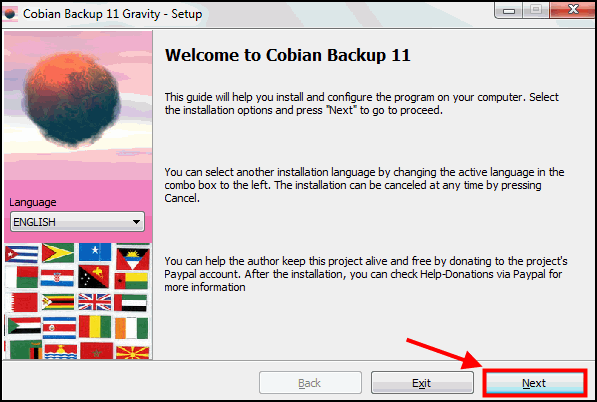
b.
In the setup
window, click Next.
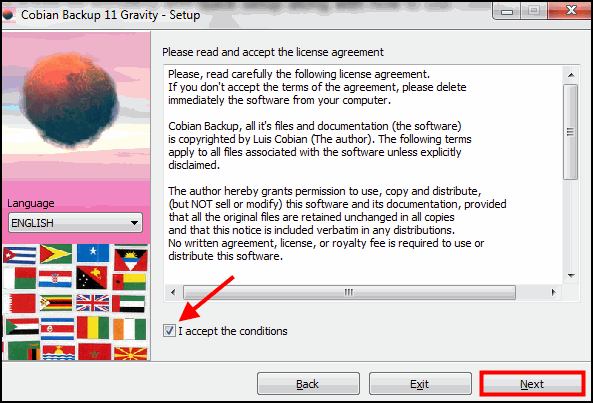
c.
Click
I accept the conditions > Next.
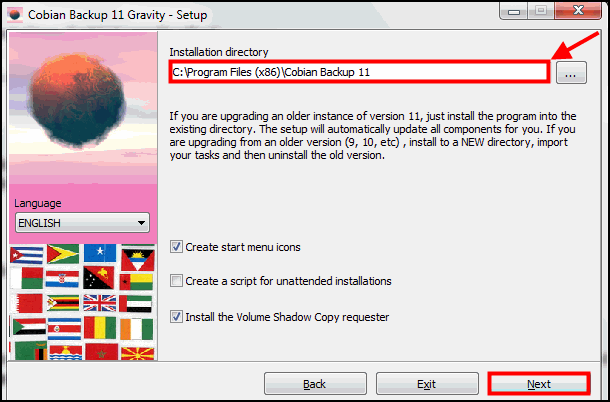
d.
Type
or locate the installation path > Next.
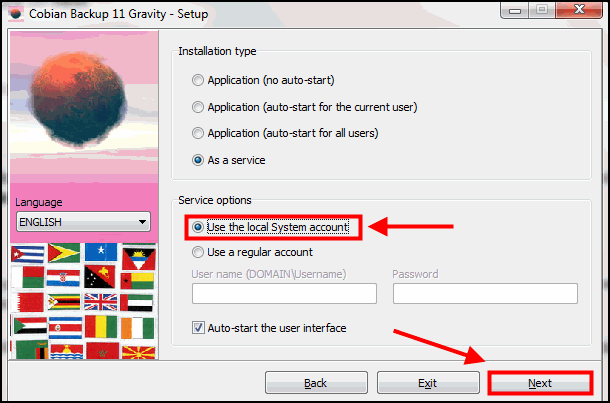
e. Under installation type select As a service. Under service options
select one of the following:
 If you are on a domain,
select Use a regular account and
provide your Username and
If you are on a domain,
select Use a regular account and
provide your Username and
Password to
prevent any Domain controller restrictions.
If it is a stand-alone
PC, select Use Local System account.
f.
Click
Next.
g.
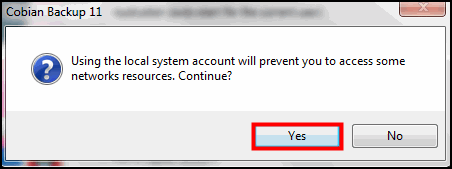
Click
Yes.
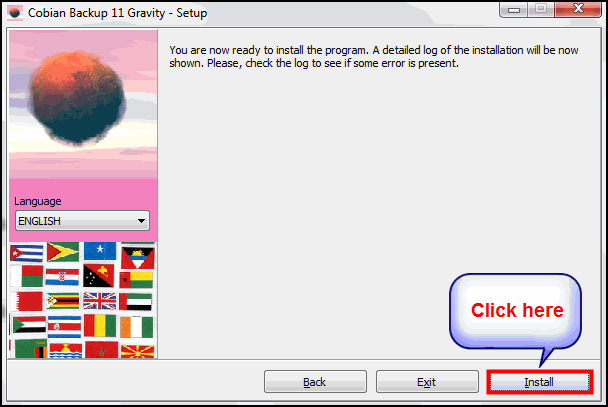
h. Click Install.
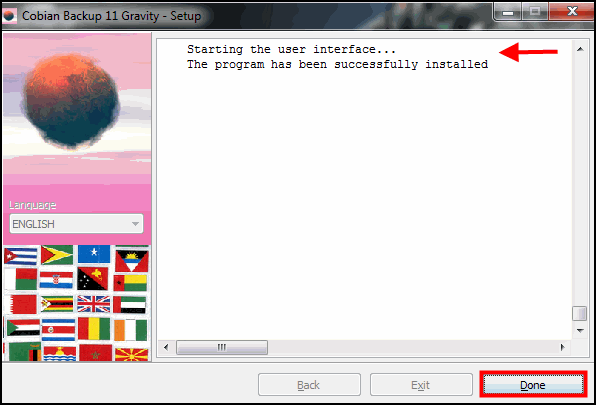
i.
Once
installation process
is complete, click
Done.
3.
Set
up backup.
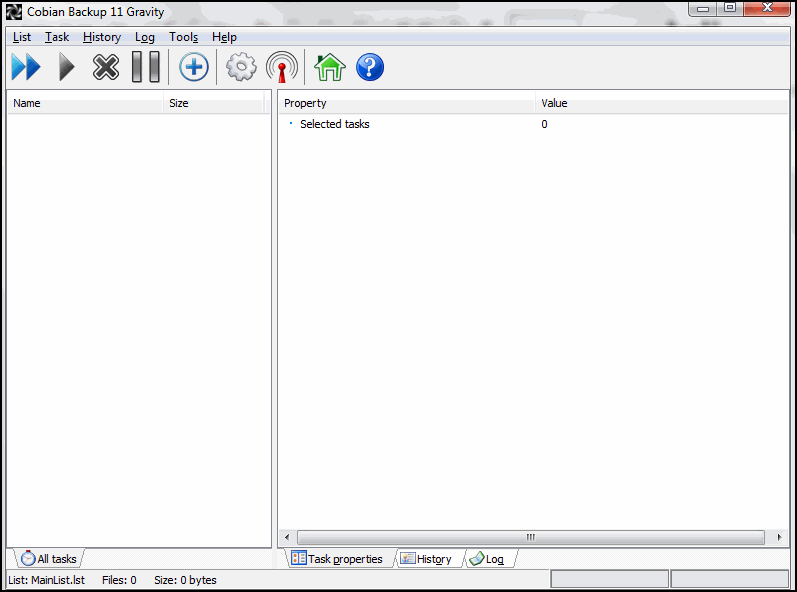
a. Open the application.
b.
Click Task >
New task or press Ctrl+A.

c.
Under
the General tab, enter Task name (for
example, Backup001) > OK.
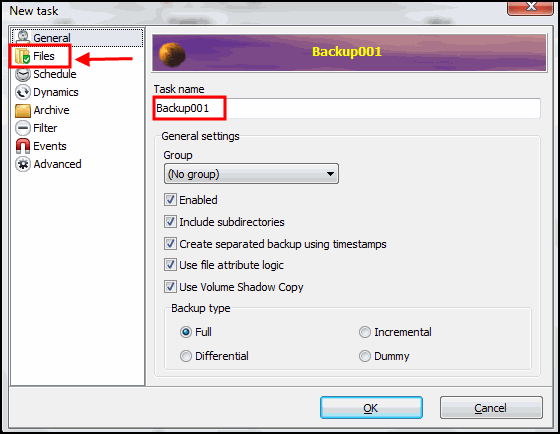
d. Click Files to
select the Source >
select the required
folder.
e.
Click
Add > select Files (directory, FTP or manual)
from the list.
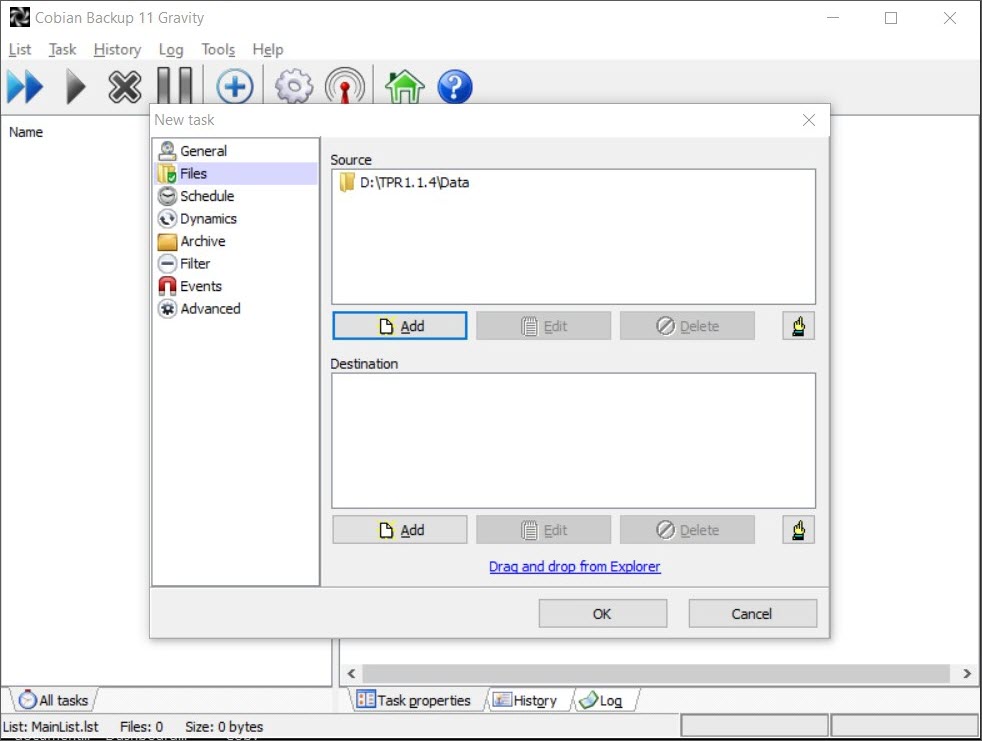
f.
Select the folder where Tally data is saved;
for example, C:\TallyPrime\Data.

g.
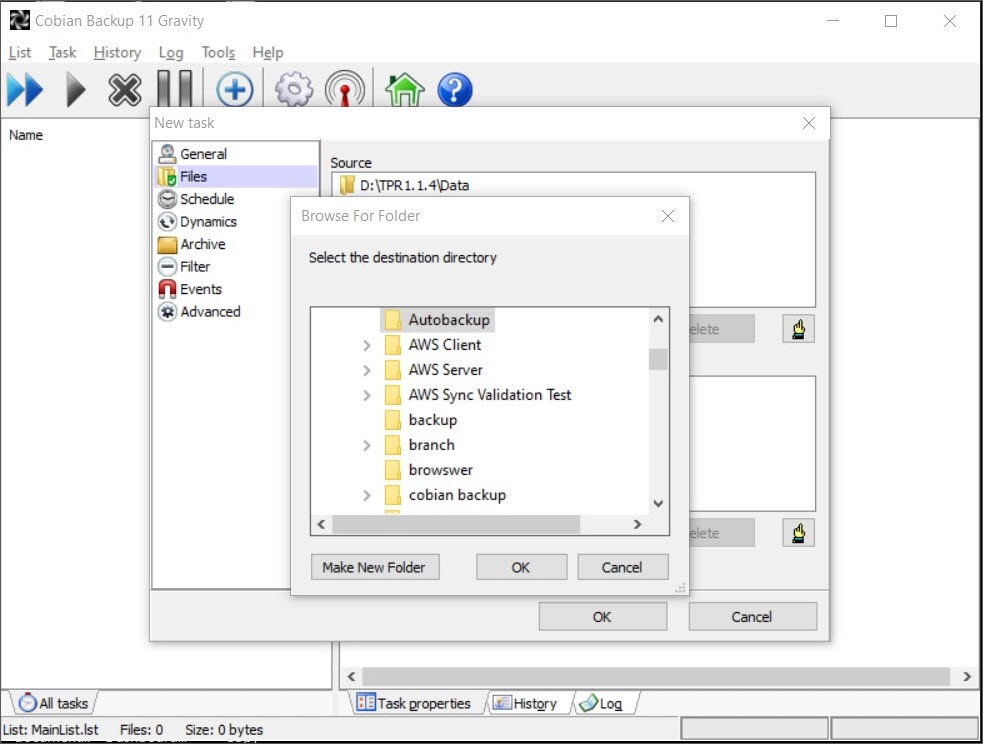
Click Destination > select the path to save data > select a folder (existing or create a new
folder) > click OK.
h. Click the Schedule
tab. Set the frequency for data backup.
i.
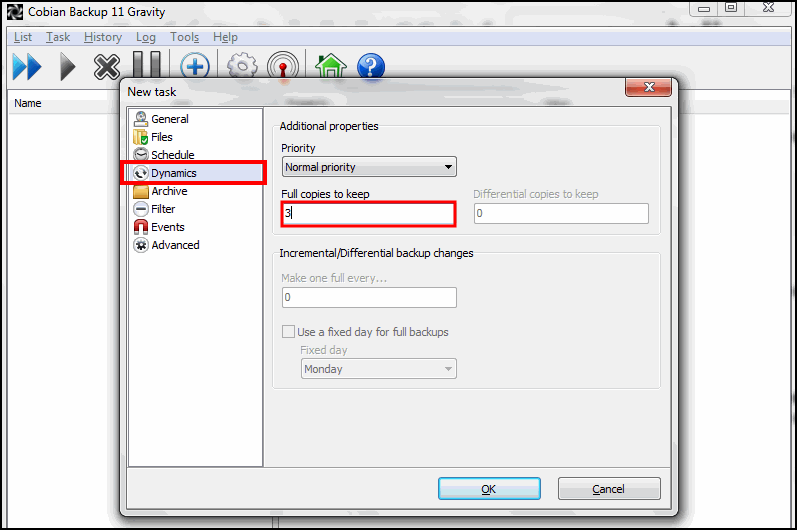 Click the Dynamics
tab. Set the count of backup in Full copies to keep. For example, if you
want to back up your data daily, you can keep only the last three backups.
This completely depends on your business
needs.
Click the Dynamics
tab. Set the count of backup in Full copies to keep. For example, if you
want to back up your data daily, you can keep only the last three backups.
This completely depends on your business
needs.
j.

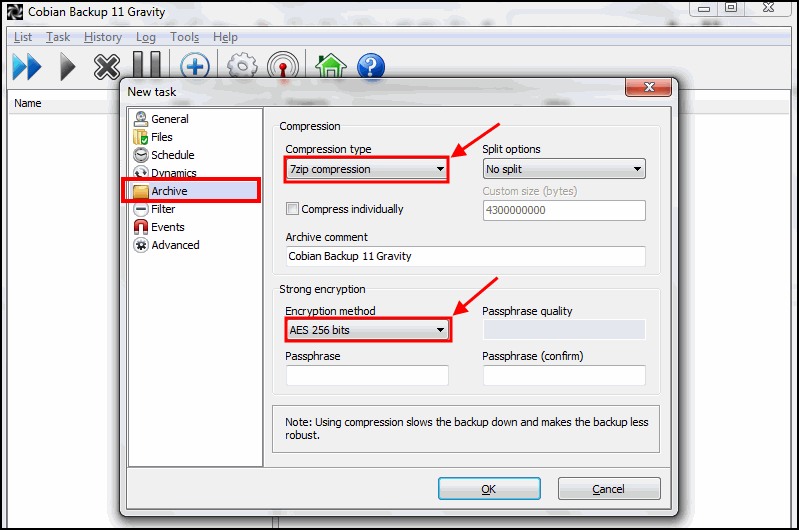
Click the Archive tab.
Select the compression type; that is, you can use Zip, 7zip, or No
compression.
You can encrypt
files up to AES 256 bits.
k.
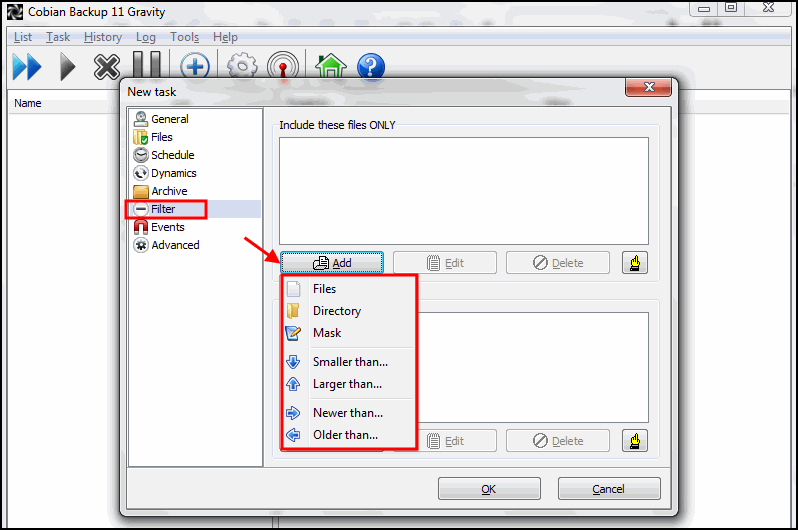
Click
the Filter tab, and select the files you want to include.
l.
Exclude *.tsf file from scheduled backup,
and continue accessing
the data during the backup process.
m.
Click Add >
browse for .tsf files > OK.

n.
Click
the Advanced tab > enable the required options
> click OK.

As per the scheduled time, day and date, backup will take automatically. Cobian application shows the backup status
and backup size.
The backup taken
from Cobian application will appear in the Destination
specified during backup.
To restore the data, right-click the data backup (taken from Cobian application) > click 7-Zip > Extract
here. The data is extracted
in the folder with the same naming convention used in TallyPrime (for example, 100000,
100010).
Related Topics
 How to Manage & Exchange Data in TallyPrime

 How to Split Company
Data in TallyPrime | TallyHelp How to Repair Company
Data in TallyPrime
How to Split Company
Data in TallyPrime | TallyHelp How to Repair Company
Data in TallyPrime

 How to Export Data in TallyPrime | TallyHelp How to Import Data into TallyPrime
